How to Recover Access to Telegram After Your Account Is Hacked
October 5, 2026This article describes a real case of recovering a stolen Telegram account. The information is current as of October 2026.
So, you’ve lost access to your Telegram account.
Maybe it started innocently enough: a friend asked you to vote for a child in some contest, someone sent you a link to a photo, or you were asked to confirm your participation in an event. You clicked the link, saw a page that looked very similar to Telegram, entered your phone number, and then entered a verification code.
A few minutes later, you realized that your Telegram account was no longer under your control.
The scammers gained access to the account, terminated your sessions, and started sending the same phishing links to your friends. In a worse-case scenario, they may also start asking people for money on your behalf, requesting urgent transfers through Zelle, PayPal, Cash App, or another payment service.
It is an unpleasant situation, but if you still control the phone number associated with the account, there is still a good chance of recovering it.
What Actually Happened
Telegram does not necessarily use a permanent password for a normal login. Instead, Telegram sends a one-time login code. If you enter that code on a phishing website, an attacker may immediately use it to log in to the real Telegram service.
If Two-Step Verification was already enabled on the account, the attacker would also need that password. If Two-Step Verification was not enabled, an attacker who successfully gains access may try to configure additional security settings themselves.
Telegram explicitly warns that login codes for Telegram are sent through the official Telegram service chat and should never be entered on third-party websites.
After that, another problem may appear: you try to log back into your account, but Telegram responds with:
Too many attempts. Please try again later.
You wait several hours. Then a day. You try again — and see the same message.
This happens because Telegram has flood protection against excessive login attempts. Telegram’s API includes errors such as FLOOD_WAIT_X, PHONE_NUMBER_FLOOD, and PHONE_PASSWORD_FLOOD.
The limit may have been triggered by your own repeated login attempts, or it may also be related to additional login requests being made by the attacker. Without Telegram’s internal logs, there is no way to know for certain.
The important thing is to stop guessing and determine how long Telegram actually wants you to wait.
How We Recovered the Account
1. Stop Trying to Log In Repeatedly
If Telegram has already activated flood protection, repeatedly trying again may only make the situation more confusing.
The first goal is to find out how long the server is asking you to wait.
2. Open Telegram Web K
Go to:
Choose Log in by phone number and enter your phone number.
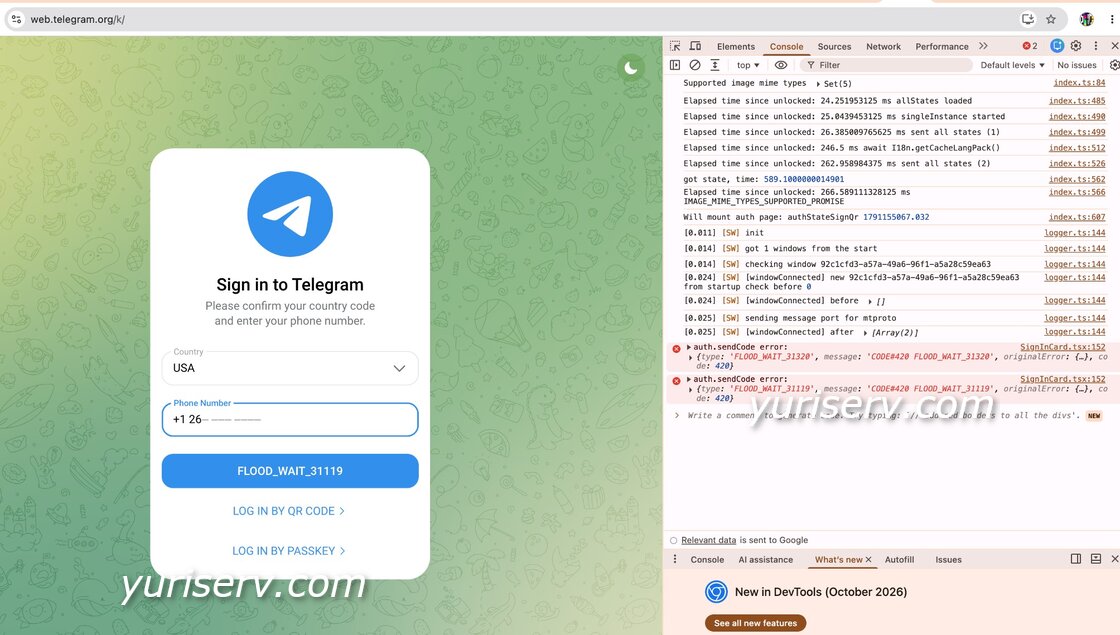
In our case, Telegram Web displayed this directly on the login button:
FLOOD_WAIT_31119
The number after FLOOD_WAIT_ represents the number of seconds Telegram requires you to wait.
For example:
FLOOD_WAIT_3600 = 1 hour
FLOOD_WAIT_31119 = 8 hours, 38 minutes, and 39 seconds
In the current version of Telegram Web K, we were able to see this value directly on the page.
If Telegram changes the interface in the future, you can also try opening your browser’s developer tools:
F12 → Console
Then look for a server error containing FLOOD_WAIT.
3. Write Down the Time and Stop Trying
Calculate when the timer will expire and add a few extra minutes for safety.
Do not keep checking every 30 minutes to see whether it works yet.
Wait until the full timer has expired.
4. Prepare the Phone You Normally Used
Ideally, use the same phone that was previously used with the Telegram account, with the SIM or eSIM associated with that phone number.
Use the official Telegram application.
5. After FloodWait Expires, Make One Login Attempt
Telegram decides how the login code will be delivered.
Depending on the account and situation, the code may arrive:
- inside Telegram on another logged-in device;
- by SMS;
- or, in some cases, through an automated phone call.
If the attacker still has an active Telegram session, assume that a login code delivered inside Telegram may also be visible to them.
Be ready to enter the code immediately.
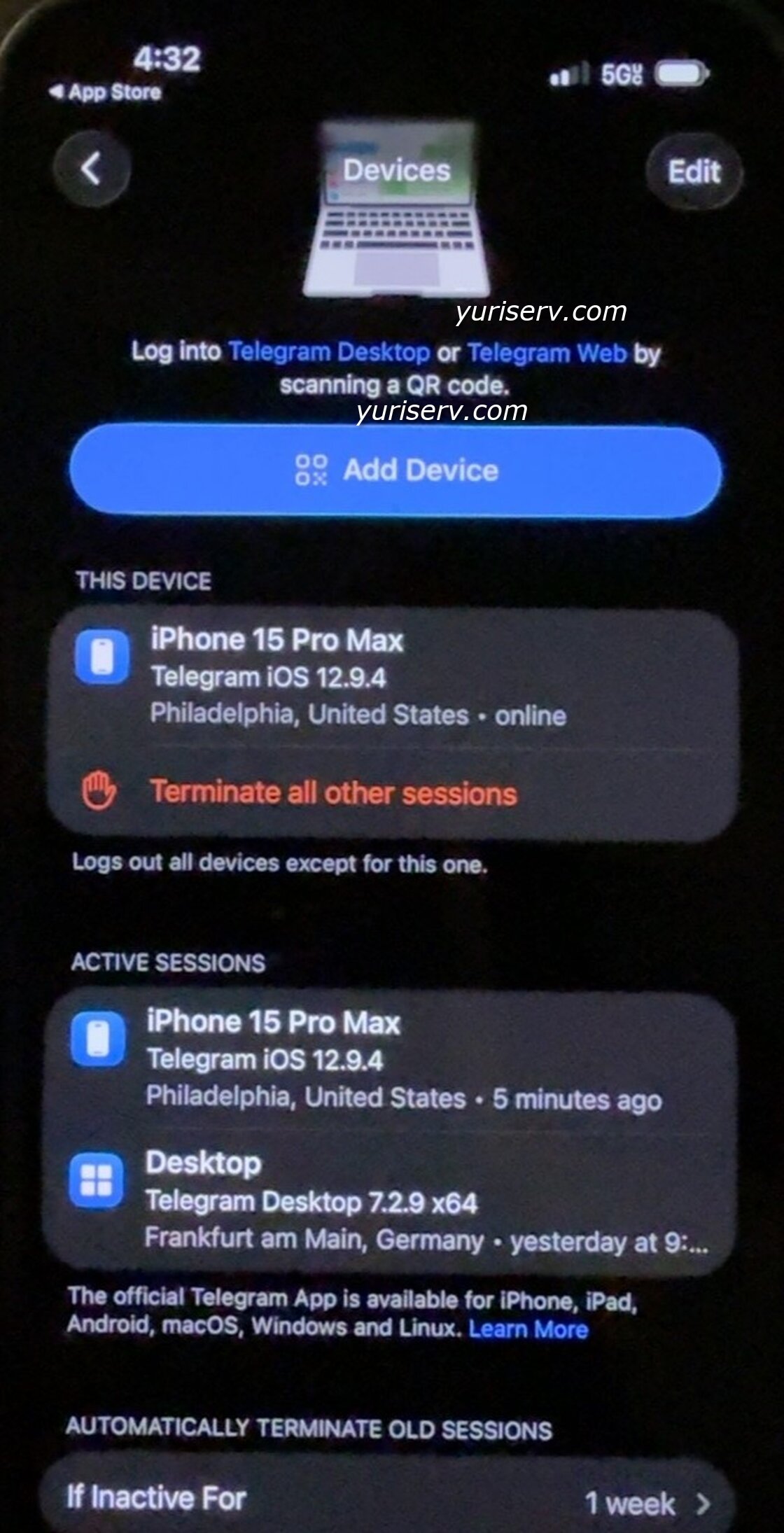
6. Once You Get In, Open Settings → Devices
Look for unfamiliar devices and try:
Terminate all other sessions
However, you may immediately run into another unpleasant surprise.
Telegram may tell you that your newly created session is not yet allowed to terminate older sessions.
This is not a problem with your phone.
It is a server-side Telegram security restriction.
Telegram’s API returns:
FRESH_RESET_AUTHORISATION_FORBIDDEN
when the current session is less than approximately 24 hours old.
So if you cannot remove the attacker immediately, do not panic.
7. Enable Two-Step Verification Immediately
Go to:
Settings → Privacy and Security → Two-Step Verification
Set a new, unique password and make sure you add your own recovery email address.
Two-Step Verification means that a future attacker will need more than just the login code to access your account.
However, there is one important limitation:
Changing Two-Step Verification does not automatically terminate an attacker’s existing session.
It helps prevent them from logging back in after their existing session is eventually removed.
8. Do Not Log Out of Your Newly Recovered Session
Do not uninstall Telegram.
Do not press Log Out.
Do not reinstall the application unless absolutely necessary.
The age of this newly created session now matters.
Once it has been active long enough, it should gain permission to terminate the older sessions.
9. Temporarily Remove Synced Contacts
While the attacker may still have access to the account, you can reduce some of the information available through Telegram.
Go to:
Settings → Privacy and Security → Data Settings
Turn off:
Sync Contacts
Then select:
Delete Synced Contacts
This does not delete the contacts stored in your iPhone or Android address book.
However, there is an important limitation: this does not erase existing Telegram chats, groups, or conversations. If the attacker has already seen someone in your chat history or copied information elsewhere, you cannot take that information back.
Once the attacker is removed, contact synchronization can be enabled again.
10. After 24 Hours, Return to Settings → Devices
Try again:
Terminate all other sessions
Then carefully review the list of devices.
Ideally, only your own device should remain.
What to Do After Recovering the Account
Once you are back in control, check what the attacker actually did.
Review your sent messages.
If the scammer asked someone to transfer money to a bank card, save the card number and screenshots of the conversation and report the fraudulent activity to the bank.
Do the same if they requested money through Zelle, PayPal, Cash App, Venmo, or another payment service.
Contact the platform’s fraud or security department and provide any available information about the recipient.
Do not delete evidence before saving it.
What to Do About the Phishing Website
Do not reopen the phishing website in your normal browser just to investigate it.
If the link still exists in a chat or in your browser history, simply copy the address.
You can investigate the technical information associated with the domain or IP address using:
Enter the website address and click Look Up.
Among the available information, look for Abuse Contacts. These may provide contact information for the hosting provider or network operator responsible for the server.
You can send them a phishing report containing the malicious URL and, preferably, screenshots.
ShowIP.online also provides a Report this IP feature that can be used as an additional way to report malicious resources and add it to the websites black list.
You can also report phishing URLs to services such as Google Safe Browsing and Microsoft Defender SmartScreen.
How to Avoid This in the Future
After you fully regain control of the account:
enable Two-Step Verification, configure a recovery email, and, if supported by your device, create a Passkey.
Telegram now supports Passkeys, which can allow you to sign in using your device PIN, Face ID, Touch ID, or another secure authentication method instead of relying only on SMS codes.
And remember one simple rule:
A Telegram login code is only for logging in to Telegram.
No voting website, contest, friend, “security service,” or third-party website should ever ask you for that code.
If a website asks for your phone number and you immediately receive a Telegram login code, stop and carefully check exactly where you are trying to sign in.
Final Thoughts
In our case, recovering the account took much longer than five minutes.
We had to deal with Telegram’s Flood Protection, determine the real server-side waiting time, wait for access to become available, recover the account, and then wait again before the newly restored session was allowed to remove the attacker’s older session.
But we recovered the account.
So if something similar happens to you, do not assume that your Telegram account is permanently lost.
The most important things are to keep control of your phone number, avoid making dozens of random login attempts, and proceed carefully and methodically.
If this guide helped you, please let us know through the Survey section of our website.
And if you need help with computers, networking, account security, or other technical problems, Yuri’s Services is always ready to help.
+++++++++++++++
For my Ukrainian friends
+++++++++++++++
Як відновити доступ до Telegram після зламу: реальний досвідУ цій статті описано реальний випадок відновлення викраденого акаунта Telegram. Інформація актуальна станом на жовтень 2026 року.
Отже, ви втратили доступ до свого Telegram.
Можливо, усе починалося цілком невинно: знайомий попросив проголосувати за дитину в якомусь конкурсі, хтось надіслав посилання на фотографію або запропонував підтвердити участь у певному заході. Ви перейшли за посиланням, побачили сторінку, дуже схожу на Telegram, ввели свій номер телефону, а потім — код підтвердження.
Через кілька хвилин з’ясувалося, що ваш Telegram більше вам не належить.
Шахраї отримали доступ до акаунта, завершили ваші сесії та почали надсилати такі самі фішингові посилання вашим друзям. У гіршому випадку вони також можуть від вашого імені просити терміново позичити гроші, перевести на карту банку або здійснити переказ через Zelle, PayPal, Cash App чи інший платіжний сервіс.
Ситуація неприємна, але якщо номер телефону, прив’язаний до акаунта, усе ще перебуває під вашим контролем, шанс повернути доступ залишається доволі високим.
Що насправді сталося
Для звичайного входу Telegram не обов’язково використовує постійний пароль. Замість цього Telegram надсилає одноразовий код входу. Якщо ви введете цей код на фішинговому сайті, зловмисник може одразу використати його для входу до вашого Telegram.
Якщо на акаунті вже була ввімкнена Two-Step Verification, зловмиснику додатково знадобиться відповідний пароль. Якщо Two-Step Verification не була ввімкнена, шахрай, який отримав доступ до акаунта, може спробувати налаштувати додатковий захист уже самостійно.
Telegram попереджає: коди входу до самого Telegram надходять через офіційний службовий чат Telegram, і їх не можна вводити на сторонніх сайтах.
Після цього може виникнути ще одна проблема: ви намагаєтеся увійти до свого акаунта, а Telegram відповідає:
Too many attempts. Please try again later.
Ви чекаєте кілька годин. Потім добу. Пробуєте ще раз — і знову бачите те саме повідомлення.
Це відбувається тому, що Telegram має захист від надмірної кількості спроб входу. В API Telegram існують коди повідомлень FLOOD_WAIT_X, PHONE_NUMBER_FLOOD та PHONE_PASSWORD_FLOOD.
Ліміт міг бути спричинений як вашими власними численними спробами входу, так і додатковими запитами, які продовжує робити зловмисник.
Тому найважливіше - припинити здогадуватися й з’ясувати, скільки саме часу Telegram вимагає зачекати.
Як ми відновили акаунт
1. Припиніть постійно намагатися увійти
Якщо Telegram уже активував захист від флуду, постійні повторні спроби можуть лише ускладнити ситуацію.
Спочатку потрібно з’ясувати, скільки часу сервер просить зачекати.
2. Відкрийте Telegram Web K
Перейдіть за адресою:
Оберіть Log in by phone number і введіть свій номер телефону.
У нашому випадку Telegram Web безпосередньо на кнопці входу показав:
FLOOD_WAIT_31119
Число після FLOOD_WAIT_ означає кількість секунд, протягом яких Telegram вимагає зачекати.
Наприклад:
FLOOD_WAIT_3600 = 1 година
FLOOD_WAIT_31119 = 8 годин 38 хвилин 39 секунд
У поточній версії Telegram Web K нам вдалося побачити це значення прямо на сторінці.
Якщо в майбутньому Telegram змінить інтерфейс, можна також відкрити інструменти розробника браузера:
F12 → Console
і пошукати серверну помилку, що містить FLOOD_WAIT.
3. Запишіть час і більше не намагайтеся входити
Розрахуйте, коли завершиться таймер, і додайте ще кілька хвилин про запас.
Не перевіряйте кожні пів години: «А зараз уже можна?»
Дочекайтеся повного завершення таймера.
4. Підготуйте телефон, яким ви зазвичай користувалися
Бажано використовувати той самий телефон, на якому раніше працював цей Telegram-акаунт, із SIM або eSIM, прив’язаною до відповідного номера.
Використовуйте офіційний застосунок Telegram.
5. Після завершення FloodWait зробіть одну спробу входу
Telegram сам визначає, яким способом буде доставлено код входу.
Залежно від акаунта та ситуації код може надійти:
- безпосередньо в Telegram на інший уже авторизований пристрій;
- через SMS;
- у деяких випадках — через автоматичний телефонний дзвінок.
Якщо зловмисник усе ще має активну сесію Telegram, виходьте з того, що код, доставлений усередині Telegram, він теж побачить.
Тому будьте готові ввести код одразу.
6. Щойно увійшли - відкрийте Settings → Devices
Знайдіть незнайомі пристрої та спробуйте натиснути:
Terminate all other sessions
Але тут може чекати ще один неприємний сюрприз.
Telegram може повідомити, що щойно створена сесія поки що не має права завершувати старі сесії.
Це не проблема вашого телефона.
Це серверне обмеження Telegram.
API Telegram повертає:
FRESH_RESET_AUTHORISATION_FORBIDDEN
якщо поточній сесії менше приблизно 24 годин.
Тому, якщо одразу видалити зловмисника не вдається, не панікуйте.
7. Негайно ввімкніть Two-Step Verification
Перейдіть:
Settings → Privacy and Security → Two-Step Verification
Встановіть новий унікальний пароль і обов’язково додайте власну адресу електронної пошти для відновлення.
Two-Step Verification означає, що надалі одного коду входу буде недостатньо для доступу до акаунта.
Але тут є важливе обмеження:
Зміна Two-Step Verification не завершує вже активну сесію зловмисника автоматично.
Вона допоможе не дати йому увійти знову після того, як його поточну сесію буде завершено.
8. Не виходьте з щойно відновленої сесії
Не видаляйте Telegram.
Не натискайте Log Out.
Не перевстановлюйте застосунок без крайньої потреби.
Тепер має значення вік щойно створеної сесії.
Коли вона буде активна достатньо довго, вона повинна отримати право завершувати старі сесії.
9. Тимчасово видаліть синхронізовані контакти
Поки зловмисник усе ще може мати доступ до акаунта, можна трохи зменшити обсяг інформації, доступної через Telegram.
Перейдіть:
Settings → Privacy and Security → Data Settings
Вимкніть:
Sync Contacts
Після цього оберіть:
Delete Synced Contacts
Це не видалить контакти з телефонної книги вашого iPhone або Android.
Але є важливе обмеження: це не видалить існуючі Telegram-чати, групи чи листування. Якщо зловмисник уже бачив певну людину у вашій історії чатів або встиг скопіювати інформацію, відкликати її назад уже неможливо.
Після того як зловмисника буде видалено з акаунта, синхронізацію контактів можна знову ввімкнути.
10. Через 24 години знову відкрийте Settings → Devices
Ще раз спробуйте:
Terminate all other sessions
Після цього уважно перевірте список пристроїв.
В ідеальному випадку там має залишитися лише ваш власний пристрій.
Що робити після відновлення акаунта
Коли ви знову повністю контролюєте акаунт, перевірте, що саме встиг зробити зловмисник.
Перегляньте надіслані повідомлення.
Якщо шахрай від вашого імені просив когось переказати гроші на банківську картку, збережіть номер картки та screenshots листування й повідомте банк про шахрайські дії.
Так само варто діяти, якщо гроші просили переказати через Zelle, PayPal, Cash App, Venmo або інший платіжний сервіс.
Зверніться до служби безпеки або відділу боротьби з шахрайством відповідного сервісу та передайте їм усю доступну інформацію про отримувача коштів.
Не видаляйте докази, доки не збережете їх.
Що робити з фішинговим сайтом
Не потрібно знову відкривати фішинговий сайт у звичайному браузері лише для того, щоб його дослідити.
Якщо посилання залишилося в листуванні або історії браузера, достатньо скопіювати його адресу.
Технічну інформацію про домен або IP-адресу можна перевірити за допомогою:
Введіть доменне ім’я або IP-адресу та натисніть Look Up.
Серед доступної інформації зверніть увагу на Abuse Contacts. Там можуть бути контактні дані хостинг-провайдера, відповідального за сервер.
Їм можна надіслати повідомлення про phishing website, додавши шкідливий URL і, бажано, screenshots.
На ShowIP.online також доступна функція Report this IP, яку можна використати як додатковий спосіб повідомити про шкідливий ресурс та додати його в чорний список веб-сайтів.
Також фішингове посилання можна передати до сервісів Google Safe Browsing та Microsoft Defender SmartScreen.
Як уникнути такої ситуації в майбутньому
Після того як ви повністю повернули контроль над акаунтом:
увімкніть Two-Step Verification, налаштуйте recovery email і, якщо ваш пристрій підтримує цю функцію, створіть Passkey.
Telegram тепер підтримує Passkeys, які дозволяють входити за допомогою PIN-коду пристрою, Face ID, Touch ID або іншого захищеного методу автентифікації, не покладаючись лише на SMS-коди.
І запам’ятайте одне просте правило:
Код входу Telegram призначений лише для входу в Telegram.
Жоден сайт для голосування, конкурс, знайомий, «служба безпеки» чи сторонній ресурс не повинні просити у вас цей код.
Якщо сайт просить ваш номер телефону, а одразу після цього ви отримуєте Telegram login code - зупиніться й уважно перевірте, куди саме ви намагаєтеся увійти.
На завершення
У нашому випадку відновлення акаунта зайняло значно більше ніж п’ять хвилин.
Нам довелося розбиратися із Telegram Flood Protection, визначати реальний серверний час очікування, чекати відновлення можливості входу, повертати доступ до акаунта, а потім ще раз чекати, доки нова сесія отримає право видалити стару сесію зловмисника.
Але акаунт вдалося повернути.
Тому, якщо з вами сталося щось подібне, не поспішайте вважати свій Telegram-акаунт втраченим назавжди.
Найважливіше - зберігати контроль над своїм номером телефону, не робити десятки хаотичних спроб входу й діяти спокійно та послідовно.
Якщо ця інструкція була для вас корисною, будь ласка, повідомте нам про це в розділі Survey на нашому сайті.
А якщо вам потрібна допомога з комп’ютерами, мережами, безпекою акаунтів або іншими технічними проблемами — Yuri’s Services завжди готові допомогти.